The new Marvel Comics app with WEBTOON went live on November 16, 2026 at 5 p.m. ET, and it replaces Marvel Unlimited, which stops adding new books on December 7, 2026. I jumped in on day one on the Ultimate tier, so here’s a walkthrough of what the app can do, what it can’t do yet, and how it compares to Marvel Unlimited.
There are two tiers. The standard tier adds new issues about 3 months after print, just like Marvel Unlimited, and the Ultimate tier adds them about 1 month after. If you’re moving to Ultimate, see the 132 comics to catch up on from the jump.
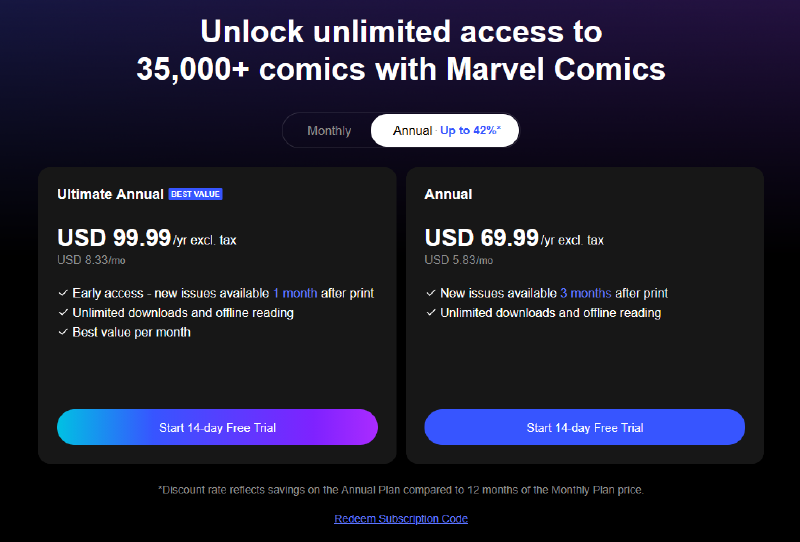
The app is on the Apple App Store and Google Play, and you can also read on the web at marvelcomicsapp.com. On the website, the annual plans are:
- Ultimate Annual: $99.99/year plus tax (about $8.33/month), with new issues 1 month after print
- Annual: $69.99/year plus tax (about $5.83/month), with new issues 3 months after print
Both include unlimited downloads and offline reading, and both offer a 14-day free trial on the website if you’ve never subscribed. Marvel’s help center says trials in the iOS and Android apps are 7 days. If you’d rather pay monthly, the standard tier is $9.99/month and Ultimate is $12.49/month, plus tax. The annual plans save up to 42% compared to 12 months of the monthly price.
Getting Started#
Your Marvel Unlimited account doesn’t carry over, so the first step is a WEBTOON account. Here’s how I set mine up and moved my Marvel Unlimited library over:
- Go to marvelcomicsapp.com and create a new WEBTOON account or sign in to one you already have. You can use your email, Google, Apple, or Facebook.
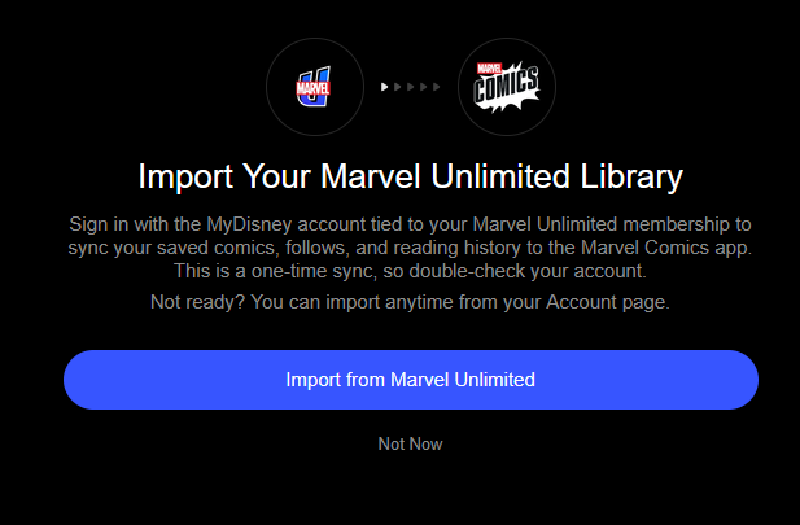
- After you verify your email address, you’ll get the chance to import your Marvel Unlimited library, including your saved comics, follows, and reading history. It’s a one-time sync, so double-check that you’re using the right account. If you’re not ready, tap Not Now and import later from your Account page.
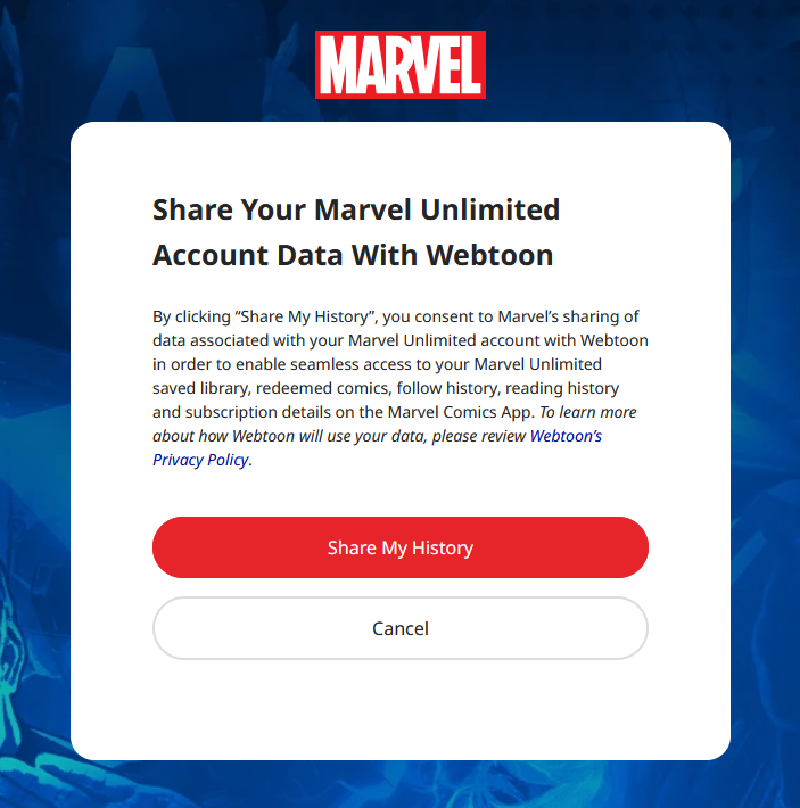
- Sign in with the MyDisney account tied to your Marvel Unlimited membership, then tap Share My History to let Marvel share your Marvel Unlimited data with WEBTOON.
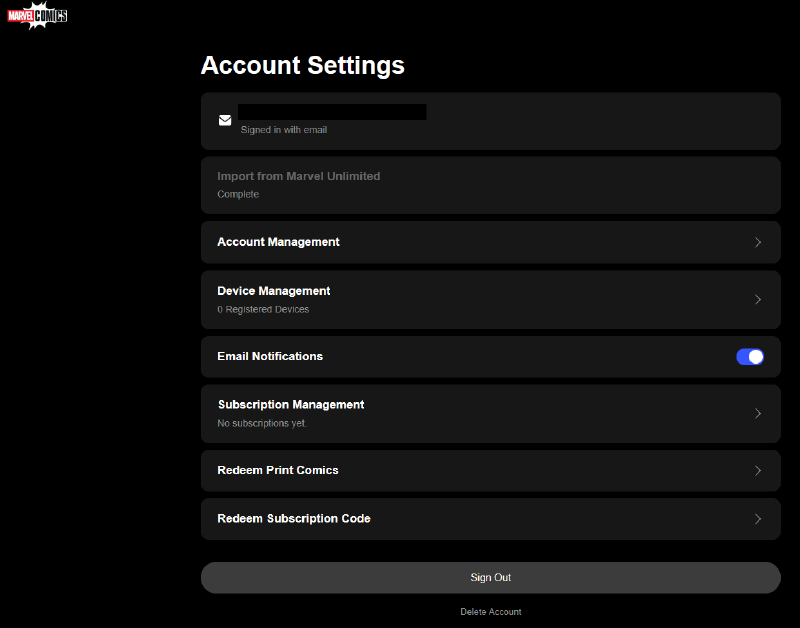
- Check your Account Settings. Import from Marvel Unlimited should say Complete.
My saved comics, Continue Reading progress, and follows all came over. Follows show up in Library > Following, and new issues from them show up in the Pull List Update row on the home page. Comics you bought or redeemed come over too, and they show up in Library > Redeemed. Marvel recommends importing before December 28, 2026, when Marvel Unlimited is removed from the app stores. See Marvel’s help center for more.
Marvel also said Marvel Unlimited members would get an automatic, prorated refund of their unused subscription around launch day. I got an email from Marvel Unlimited about my refund to PayPal. I signed in to WEBTOON with a different email address than my Marvel Unlimited account, but I did import my Marvel Unlimited history, so I’m not sure whether every Marvel Unlimited subscriber gets the refund or only people who import.
Account Settings also has Redeem Subscription Code, for codes like the Founders Offer, and Redeem Print Comics, for the digital codes that come with print comics. In Device Management, you can have up to 4 devices registered at a time, and you can deregister up to 10 devices a month to make room for new ones.
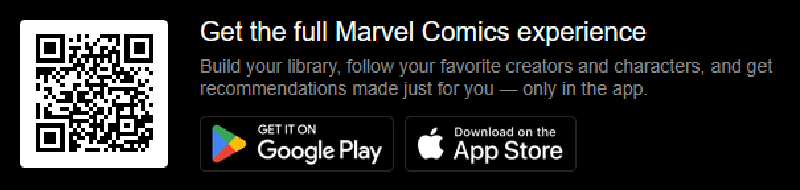
To get the app, download it from the App Store or Google Play, or scan the QR code on the website.
Founders Code Tip#
Both the 14-day Ultimate trial and redeeming a Founders Offer code ask you to put a credit card on file, even though I already paid for my Founders code with a credit card. Since the Founders subscription starts on the day you redeem the code, my plan is to start the 14-day free trial first, cancel it around day 12, and then redeem my Founders code. That way I get two extra weeks before my first year starts. Codes expire March 31, 2027, so there’s plenty of time.
The Home Page#
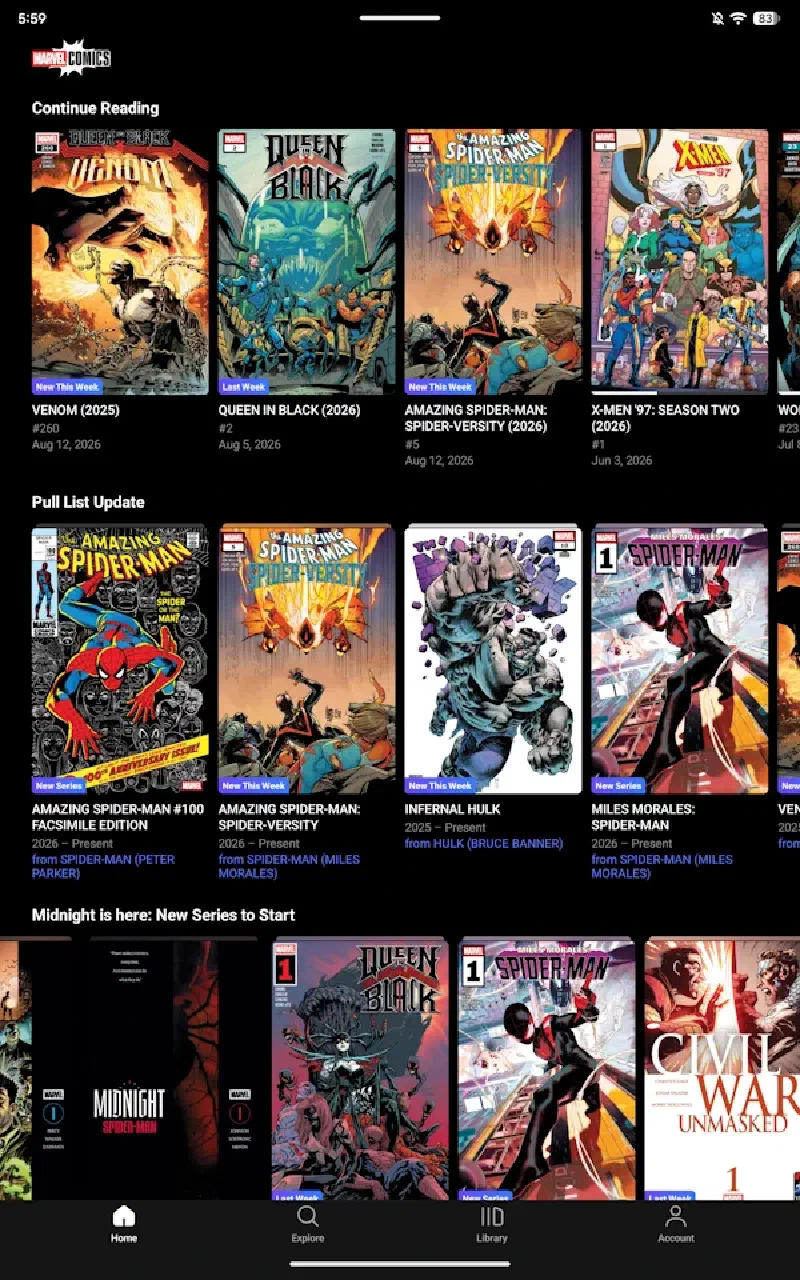
The home page is a set of rows you scroll through:
- Continue Reading: the issues you’re in the middle of
- Pull List Update: new issues from the series you follow
- Featured series: right now, Midnight is here: New Series to Start
- Infinity Comics
- Latest Comics: with New This Week and Last Week labels
- Get Ready for Midnight
- New to Marvel? Pick a hero
- Upcoming: with handy buttons to follow a series or add it to your library
- Moments that Made Marvel
Weekly Releases#
New books arrive on Mondays. The Latest Comics row on the home page and the Latest page on the website label books New This Week and Last Week. There’s no release calendar, and nothing marks which books are Ultimate-only, so standard tier readers can’t tell what’s coming to them later.
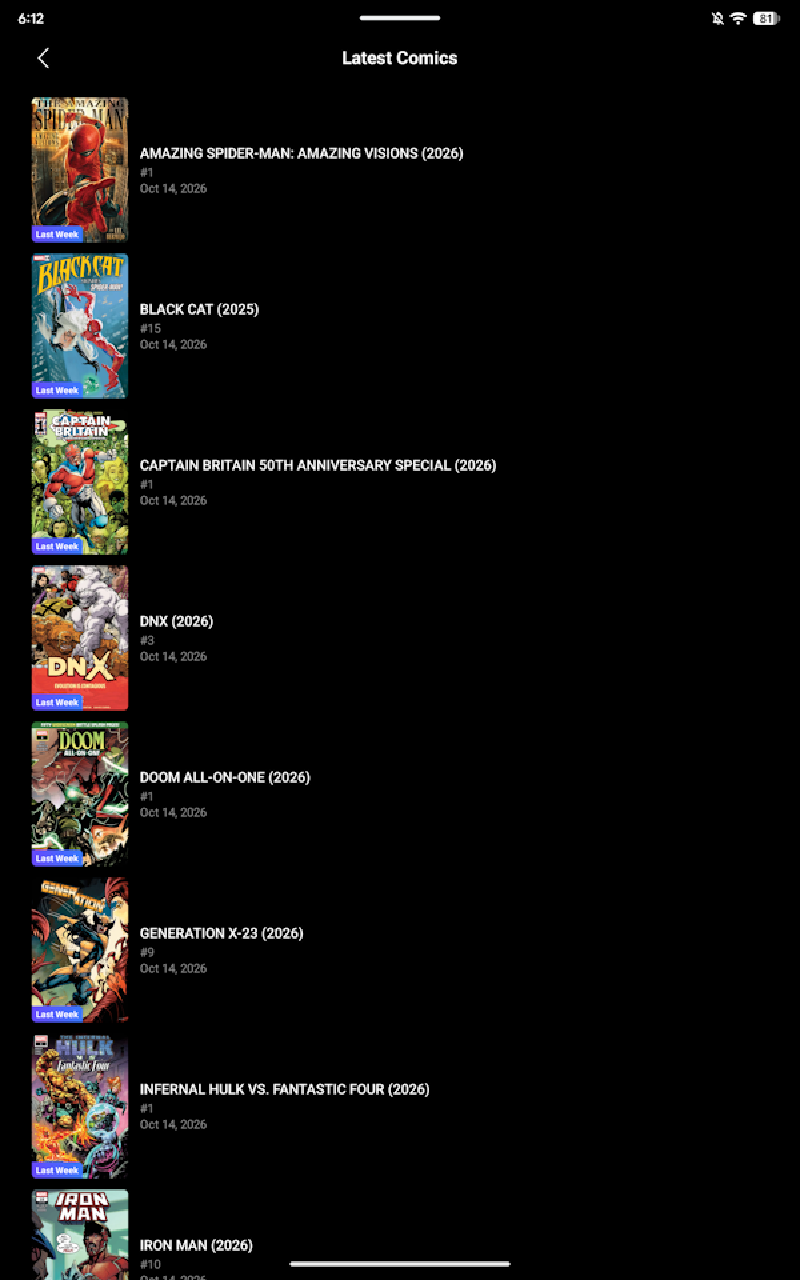
I track the Ultimate tier’s new books every week, starting with the November 16 releases.
Series Pages#
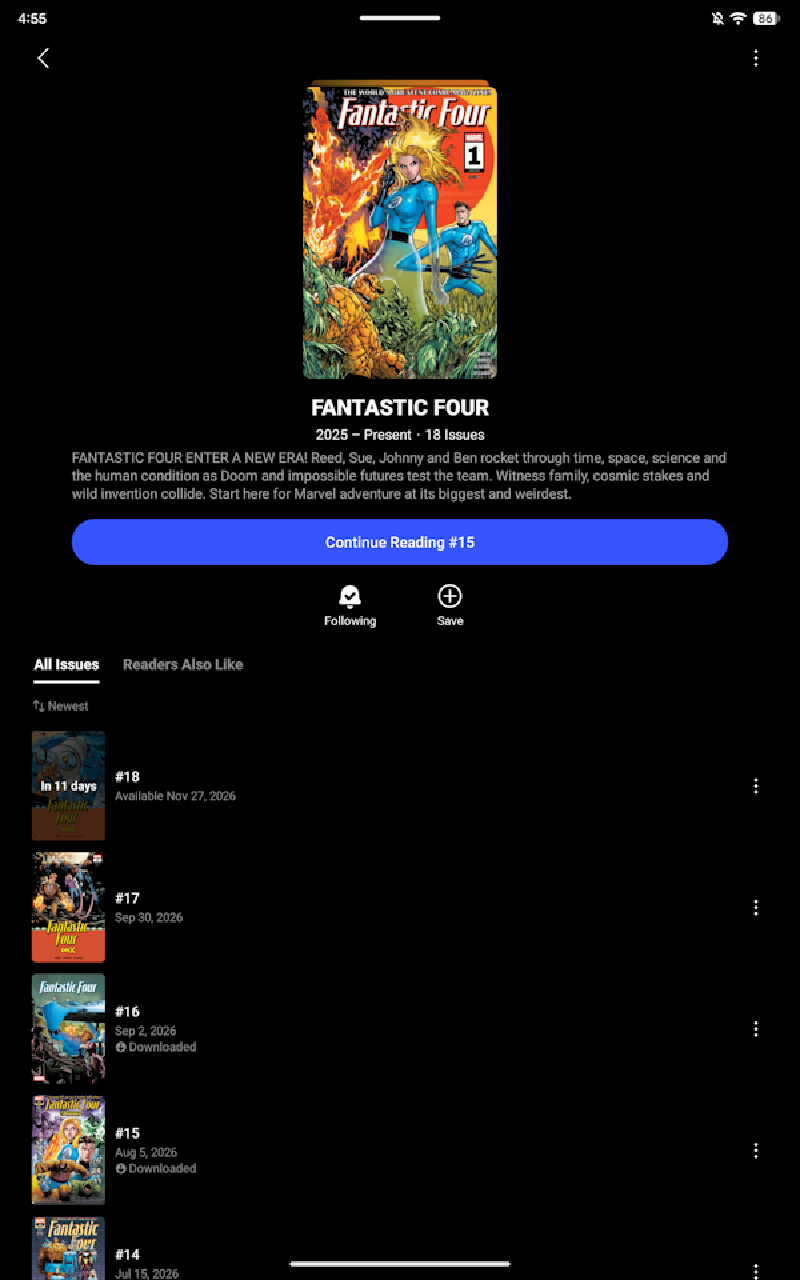
Each series page lists its issues, newest first, with your read status and which ones you’ve downloaded. It also shows the next issue coming to the app and when. For example, the Fantastic Four series page shows #18 coming in 11 days, available November 27, 2026. The Continue Reading button picks up with the next issue you haven’t read, and you can follow or save the series from the same page.
Issue Pages#
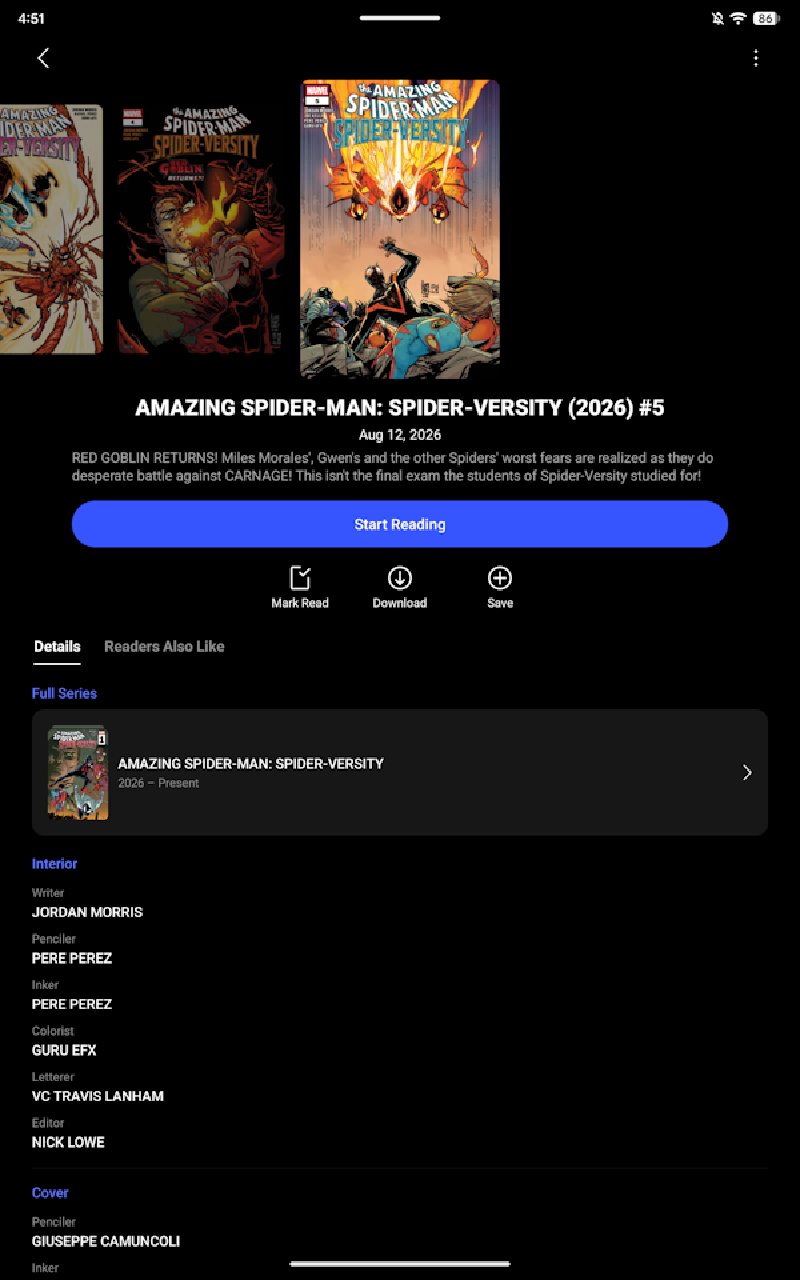
Each issue page has the cover, release date, and summary, with buttons to Start Reading, Mark Read, Download, or Save. The Details tab links to the full series and lists the creators for the interior and the cover, and Readers Also Like suggests other books.
Downloads#
Both plans include unlimited downloads and offline reading. Tap Download on an issue page, then read it from Library > Downloads. Library > Downloads lists all of your downloads as individual issues, and you can remove them in bulk. Each download shows how long it’s available, which is 30 days from when you downloaded it. Comics you bought or redeemed can be downloaded no matter your subscription status or tier.
There’s no option for download quality. Most books are 11-20MB, and The Amazing Spider-Man #1000 is the biggest I’ve seen at 63.1MB. Downloads only work in the iOS and Android apps. If you try to download on the website, it sends you to the apps.
Marvel MAX Comics#
Marvel MAX comics aren’t in the app, so you won’t find Marvel’s mature-readers line here.
Trades and Omnibuses#
The app doesn’t include trade paperbacks or omnibus collections. Everything is single issues, so you’ll read a story arc issue by issue.
Reading Lists#
You can save any series, issue, or reading guide to Library > Saved, with no limit. You can also follow series, characters, and creators, which puts them in Library > Following and sends you a notification when something new is added. You can turn notifications on or off for each one. Marvel’s editors also curate reading guides in the Explore tab, with categories like Character Close-Up, Storylines, and Events.
Following a series from inside a book takes a few steps, though. Tap the middle of the page to bring up the menu, tap to view the issue details, tap the series under Full Series, and then tap Follow.
You can save Marvel’s reading guides, but it doesn’t look like you can create your own reading lists.
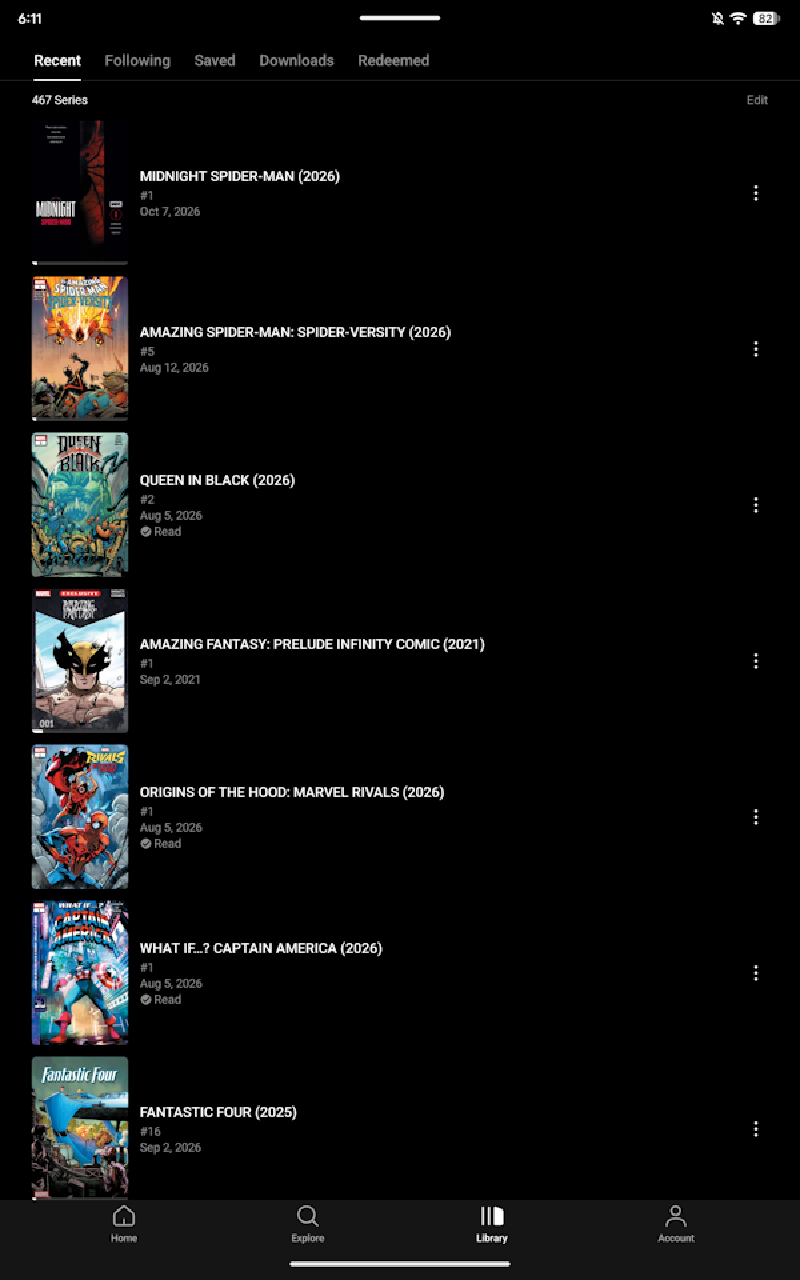
The Library has tabs for Recent, Following, Saved, Downloads, and Redeemed. Recent shows your reading history, including everything imported from Marvel Unlimited, with a Read check on the issues you’ve finished.
The Reader#
Reading a book feels a lot like Marvel Unlimited. You can read page by page, or switch to Smart Panel to move through the book one panel at a time. The app is fast to get around in. Both regular books and Infinity Comics read full screen with high image quality, which is really nice.
You won’t see screenshots of the books themselves here. The app lets you take screenshots of its menus and screens, but it blocks screenshots while you’re reading a comic.
Double-page spreads work the same as in Marvel Unlimited: pinch to zoom, or rotate your device to see the whole spread.
Navigation Tips#
- Turn pages: Tap the right third of the page to go to the next page, or the left third to go back.
- Skim quickly: Use the scrollbar at the bottom of the reader to jump through the book fast.
- Menu: Tap the middle of the page to bring up the menu. From there, you can turn on Smart Panel, share the issue, save it to your library, view the issue details, or report a problem.
- Exit the reader: Tap the middle of the page, then tap the back arrow.
- Smart Panel: Tap the button in the top-right corner, a rectangle with a caret above and below it, or double-tap a panel to zoom into it.
Infinity Comics#
Infinity Comics are made for reading on a phone, so they work differently:
- Read: Scroll up or down to read continuously.
- Zoom: Double-tap to zoom in or out.
- Menu: Tap to show or hide the menu.
Finishing an Issue#
When you finish an issue, the app prompts you to follow the series so you get notifications about new issues. It also has a button to read the next issue in the series, plus related series under “You May Also Like.” One catch: if you’re reading a downloaded copy, it doesn’t take you to the next issue. It just lists the issue you finished.
Multiple Profiles#
There’s no sign of multiple profiles or parental controls in Account Settings, so everyone who reads on an account shares one library, reading history, and list of follows.
Other Features#
Search is in the Explore tab, where you can find series, issues, characters, and creators, then filter and sort the results by type. The app also includes Marvel Infinity Comics you can only read here.
Your reading progress syncs between devices, so you can pick up where you left off. You can also read on the web at marvelcomicsapp.com. The web reader is a lot like the app: simple to navigate, clear to read, and easy to advance pages. There’s no Library on the web, though, so your saved comics, follows, reading history, downloads, and redeemed comics are only in the iOS and Android apps.
There are no ads in the app. I’m on the Ultimate tier, so I haven’t seen whether standard tier readers get upsells.
What I Hope Gets Added#
It’s a solid start, and I hope these get added:
- Marvel MAX comics
- Trade paperbacks and omnibuses
- Custom reading lists
- Profiles and parental controls
- A way to tell which books are Ultimate-only
- A next-issue button when you finish a downloaded copy
- A Library and downloads on the web
- A quicker way to follow a series from inside a book
Is It Worth It?#
Overall, I think it’s worth it, the same way Marvel Unlimited was worth it. It’s fast, the images look great, and my library came over without a problem. Hopefully there are more features to come.
Which tier should you pick? The Annual plan saves you $30 a year, so if you’re fine with the 3 month delay, stick with Annual. If you want new issues just 1 month after print, go for Ultimate Annual. I also subscribe to DC Universe Infinite Ultra, so the Ultimate tier lets me keep up with releases from both of the Big Two on the same schedule.
For more questions and support, visit the Marvel Comics help center.
Keep an eye on our weekly Marvel releases for what’s new each week.
Looking for other ways to read? See the best digital comic book apps and services.